Sharing Studies
Sharing Studies on Blume (Web)
Blume allows you to securely share medical studies with others, including external users and healthcare providers. Follow the steps below to share a study using the Blume web application.
How to Share a Study
Step 1: Open the Study
• Navigate to the study you wish to share from your worklist or study list under completed appointments.
• Click on the desired appointment card/study.
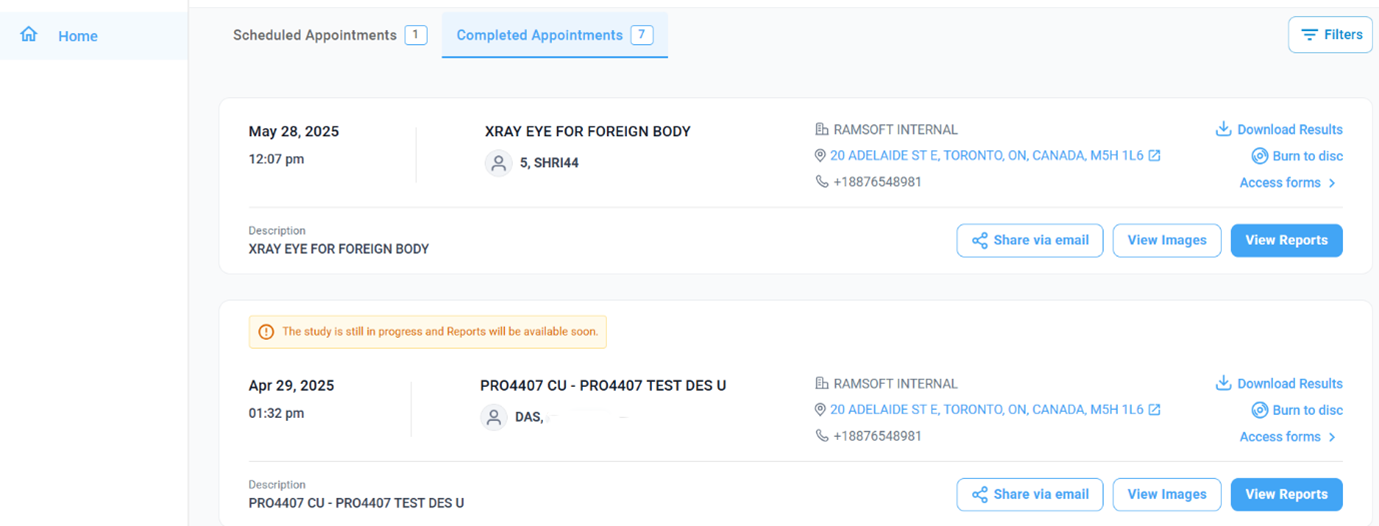
Step 2: Access Sharing Options
• Locate the Share via Email option at the bottom of the selected appointment card.
• Click on it to open sharing methods.
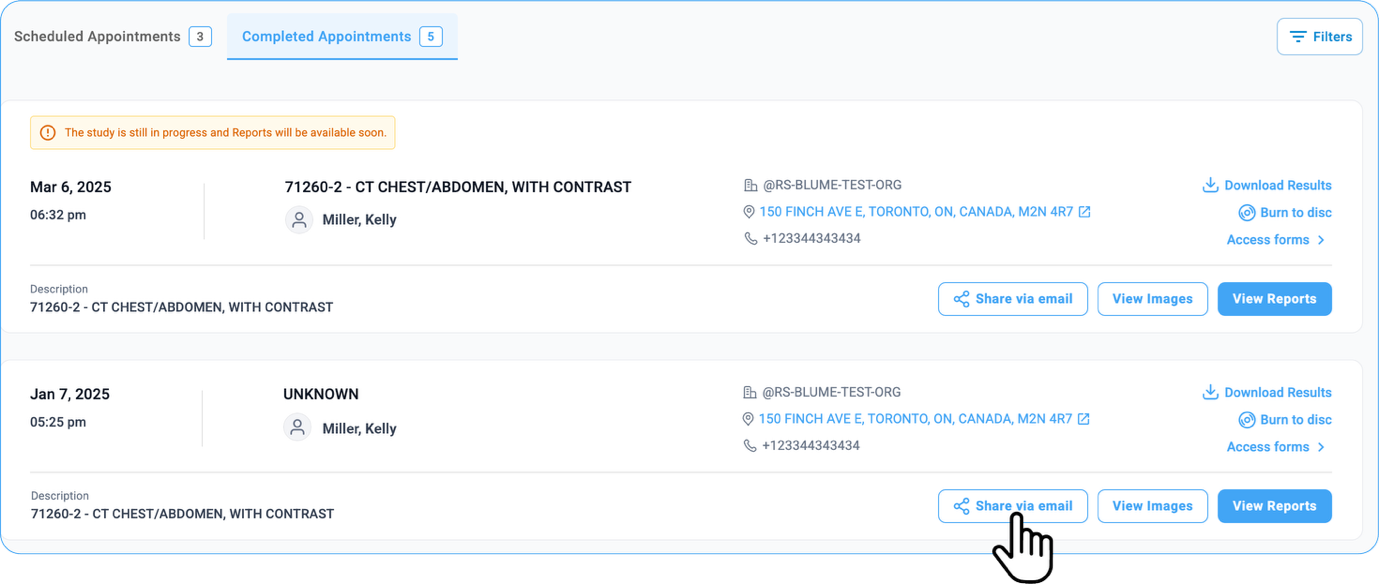
Available Sharing Methods
Share via Email
• Enter the recipient’s email address.
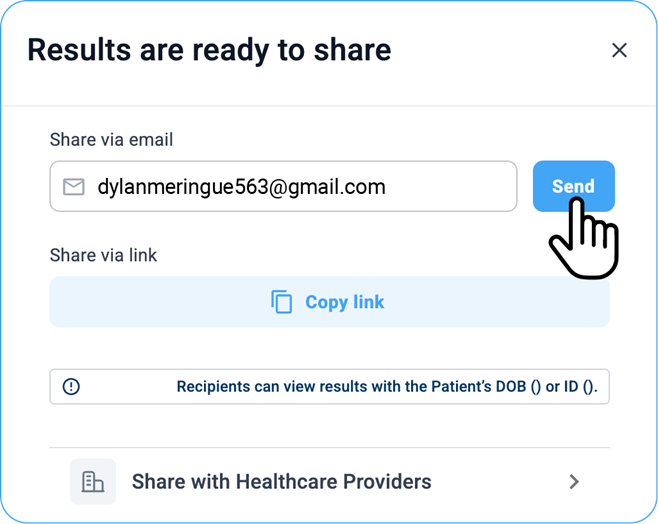
• If the address was used previously for other studies, it will appear in a dropdown list.
• For new email addresses, type the full address and click Send.
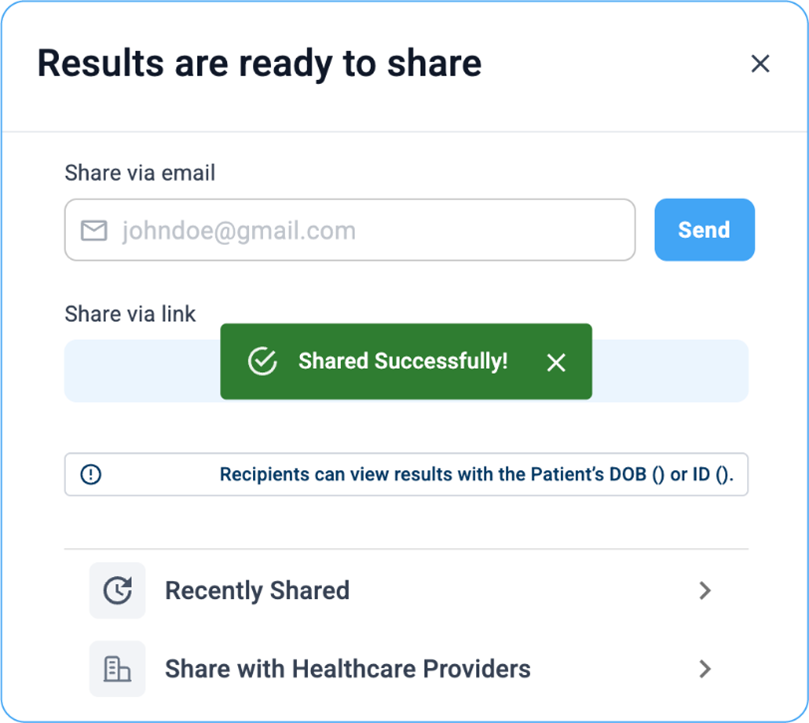
• Once shared, a confirmation message will appear:
"Shared successfully."
IMPORTANT:
• The dropdown list of email addresses shows all contacts previously used to share other studies.
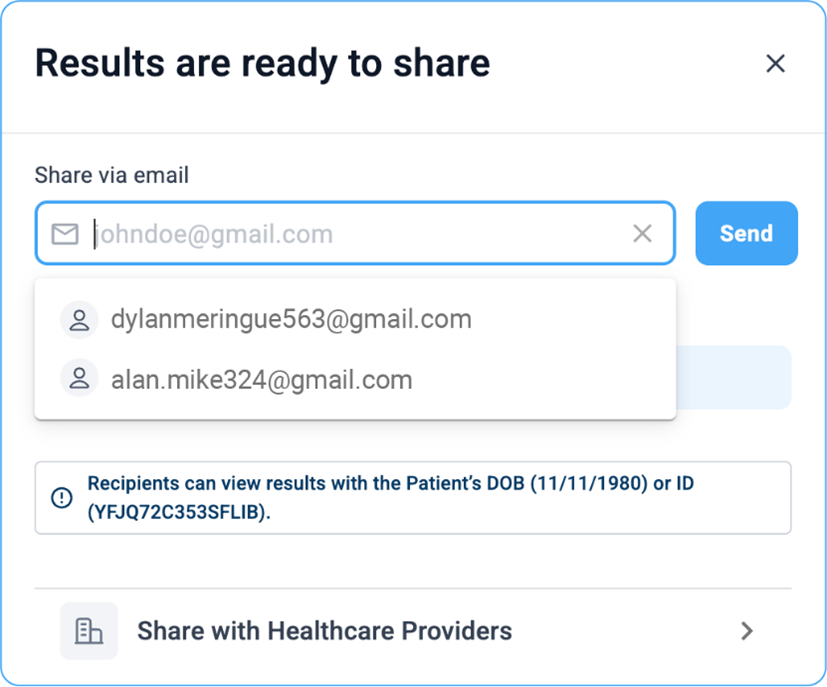
• When sharing a study for the first time, the dropdown includes all email addresses used for different studies.
• After an email address is used to share the current study, it will no longer appear in the dropdown for that study.
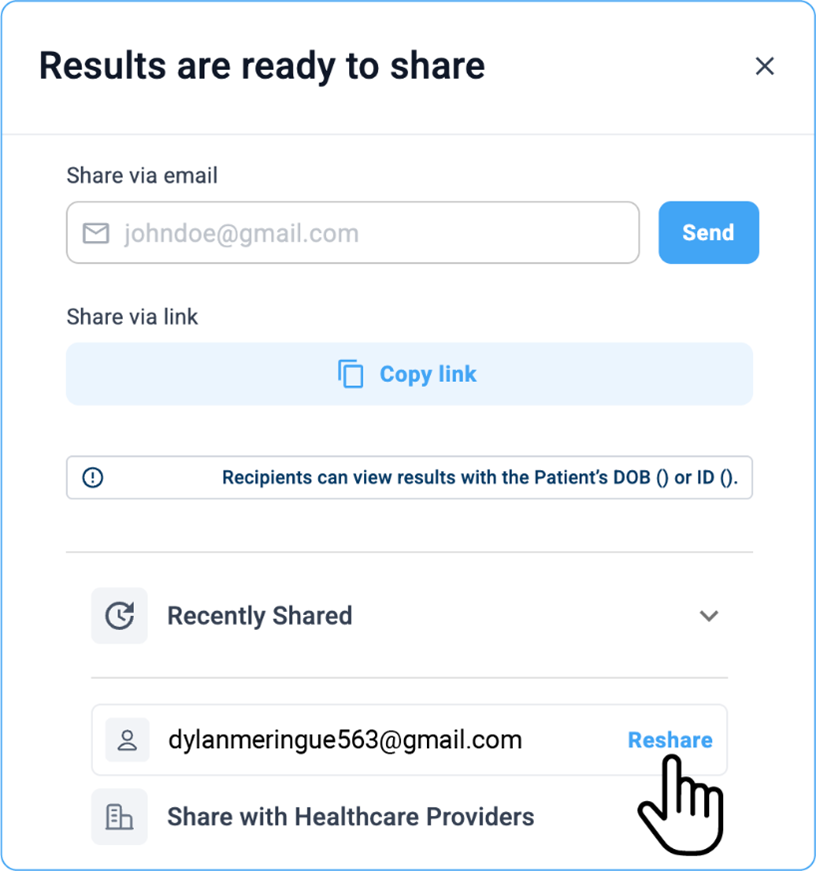
• Instead, these email addresses will be listed under the Recently Shared section, where you can easily reshare the study to them.
• Any new email address added while sharing the current study will follow this same rule.
For example:
If you shared Study A with 3 email addresses, these addresses appear in the dropdown when sharing Study B. Once you use them to share Study B, they will be moved to Recently Shared for Study B and will no longer appear in that dropdown. When sharing Study C, all previously used email addresses across studies will appear in the dropdown, except those already used for Study C, which will be listed under Recently Shared.
Additional Options
A. Recently Shared
• Below the sharing options, you can view the most recent email address used to share the study.
• Use the Reshare button to share the study again with the same recipient quickly.
B. Share via Link
• Click on the " Copy the Link" option below the option.
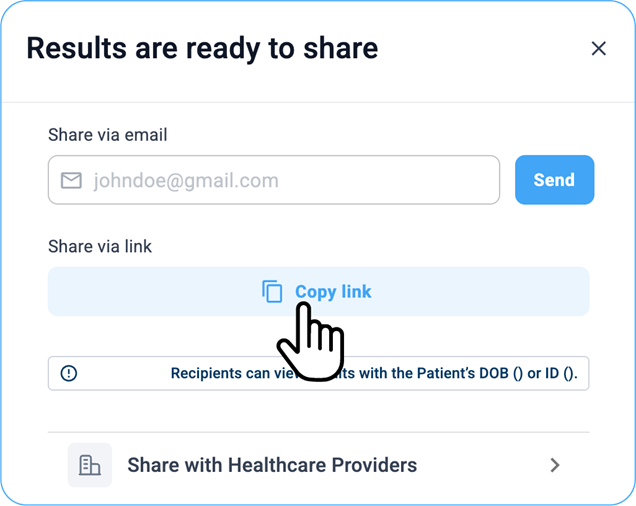
• A read-only link will be generated.
• Paste the link into a browser to open it.
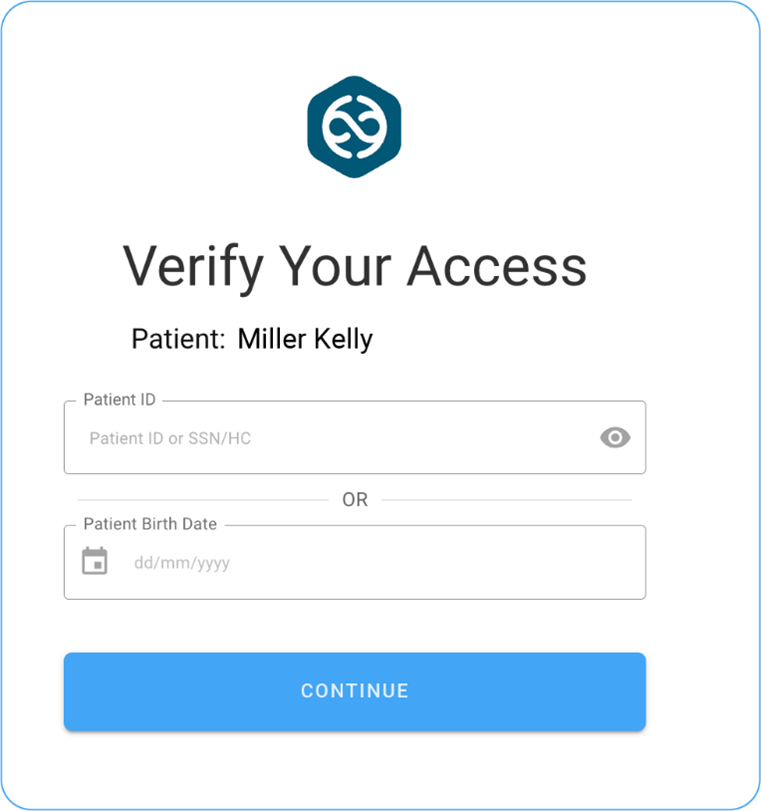
• Access Verification: The recipient must enter one of the following to view the study:
o Patient ID
o SSN
o Health Card Number
o Date of Birth
Note: A toast message will appear below the copy link option:
"Recipients can view results with the patient’s DOB (01/01/1978) or ID (YW3CBZ5ZX59QUE7)."
External Access:
Users without a Blume login can view the study in read-only mode using the shared link.
C. Share with Healthcare Providers
• A list of associated healthcare providers (linked to your registered email) will appear.
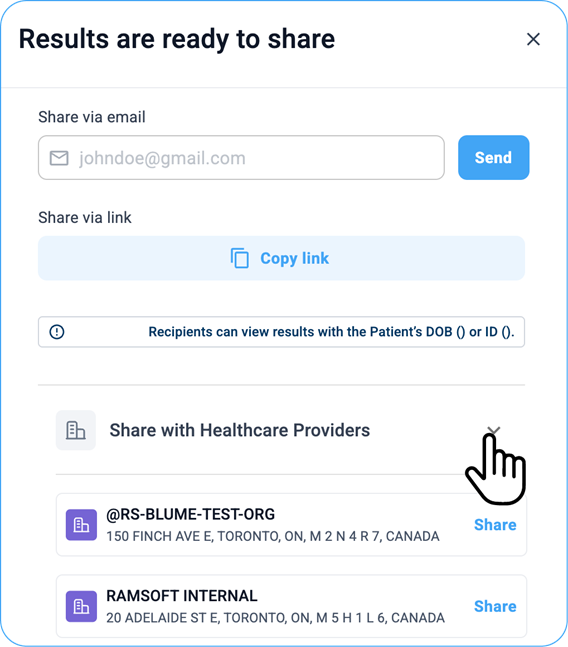
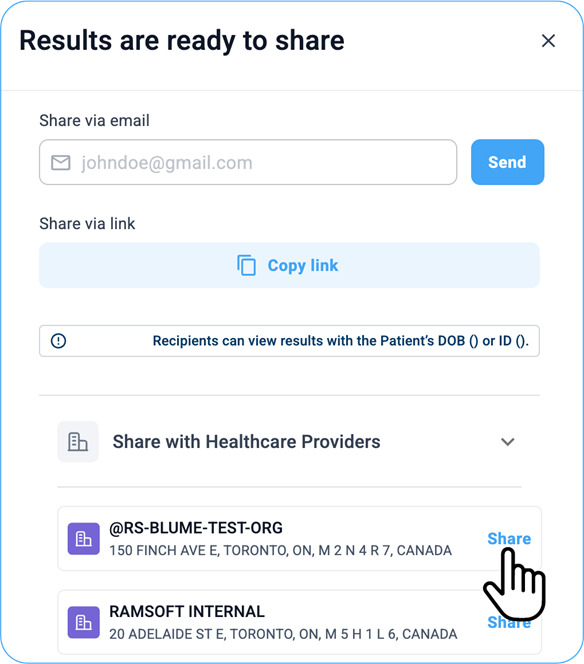
• Select the desired organization.
• Click Share to send the study directly to the selected provider(s).
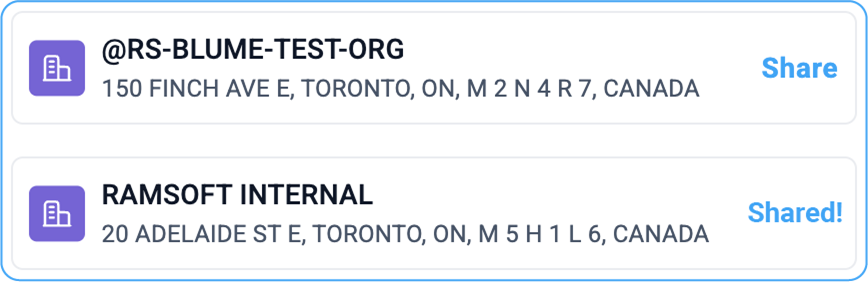
• When a report is shared with the healthcare provider, its status is updated to Shared.
Sharing Studies on Blume (Mobile Devices)
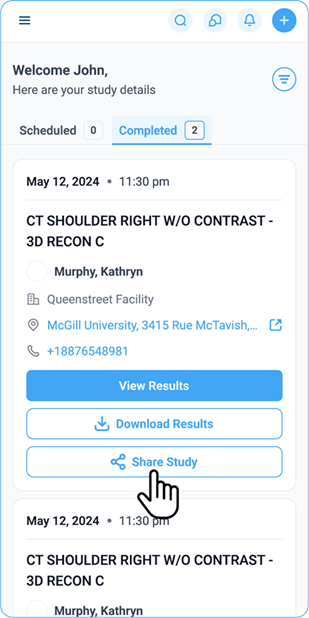
The Share Study feature on the Blume mobile app has been enhanced for seamless sharing through native mobile workflows.
Key Enhancements:
• Updated Button Label: Previously "Share via Email", now renamed to "Share Study" for clarity.
• Native Integration: Share using any installed communication app via the mobile share drawer.
• Pre-filled Message: Includes study name and secure access link.
• Secure: Shared links are protected.
When you tap the Share Study button from the Completed tab:
• A share packet opens, displaying options like Copy Link, WhatsApp, Gmail, and Share via.
• Apps such as WhatsApp or Gmail will appear only if installed on the device; otherwise, they remain hidden.
• Tapping Share via opens your device’s native share sheet, allowing you to select from available apps for sharing.
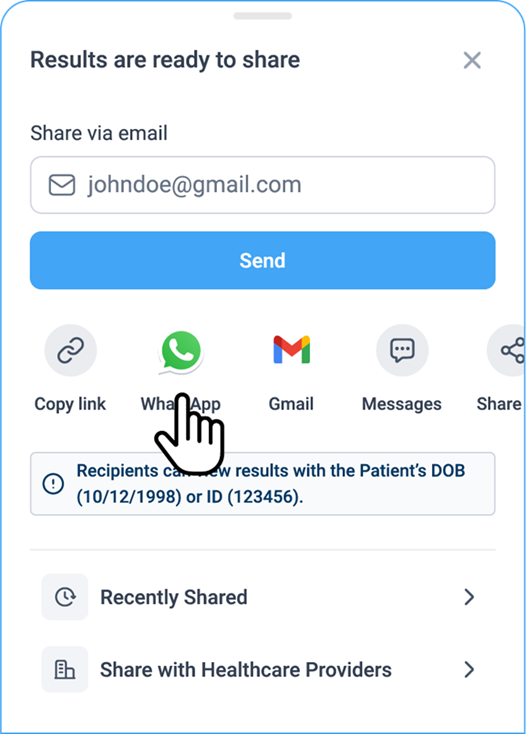
This enhancement improves usability while maintaining OmegaAI’s secure sharing standards.
Troubleshooting
Common Issues and Solutions
Issue: “Invalid email address” error when sharing via email.
Solution: Double-check the email address for typos or missing characters. Ensure it follows the format of example@domain.com.
Issue: The recipient cannot access the study via the shared link.
Solution: Verify that the recipient has an active OmegaAI account. If not, they will need to register or contact support.
Issue: The Reshare option is not visible in Recently Shared.
Solution: Ensure the study was previously shared. Only shared studies appear in the Recently Shared section.
When to Contact Support:
When you encounter
- Persistent errors when sharing via email or copying links.
- Issues accessing the Recently Shared section.
- Unexpected behavior or error messages.
Mini-Glossary
- HIPAA Compliance: Adherence to the Health Insurance Portability and Accountability Act, ensuring privacy and security of patient information.
- Toast Message: A brief, non-blocking notification that appears on the screen to confirm an action, such as “Success!”
- Authentication: The process of verifying a user’s identity to ensure secure access.
- Reshare: The action of sharing a previously shared study again with the same or new recipients.
This updated Share feature exemplifies BLUME’s commitment to improving user experience and enhancing collaboration within the healthcare ecosystem. For more details on related features, visit the OmegaAI